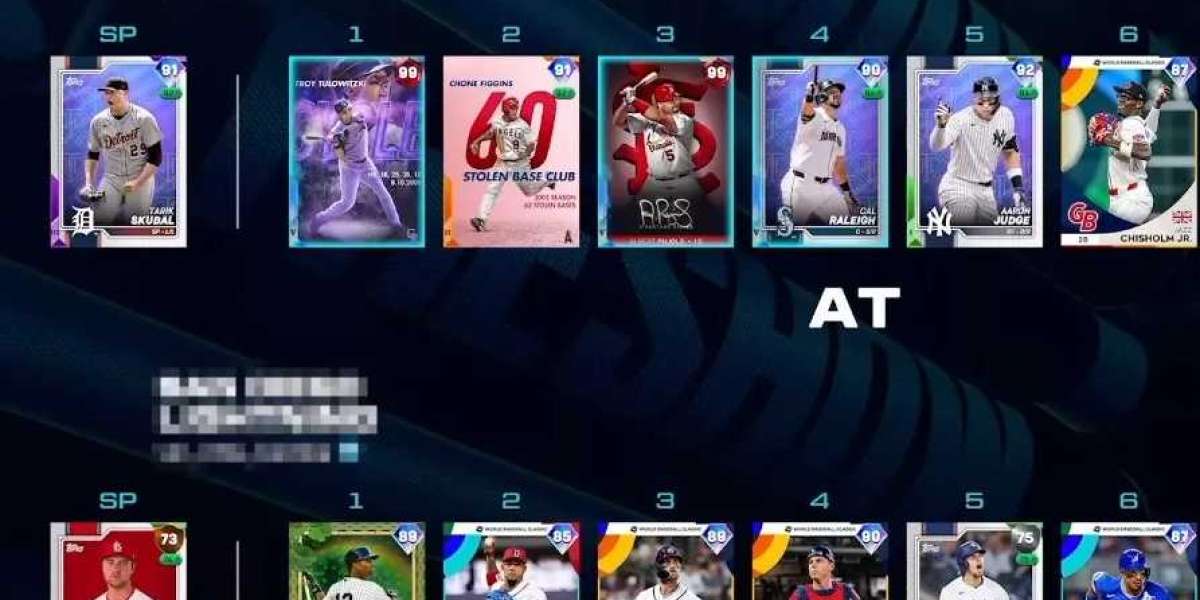

There is nothing quite like the feeling of sitting on the same couch with a friend, grabbing two controllers, and going head-to-head in a tight baseball game. If you are diving into MLB The Show 26, you will be happy to know that local offline multiplayer is fully supported for up to two players. Whether you want to settle an old rivalry in a quick 1v1 matchup or team up to take down the AI together in couch co-op, the game gives you a couple of solid ways to do it.
However, before you fire up the console and hand over the second controller, there are a few details you should know about how the screen view works, which modes are actually available, and how to get everything properly configured so you can jump straight into the action.
How Screen View and Responsibilities Work
One of the most common questions players ask before jumping into local multiplayer is whether the game uses a split screen. The short answer is no. Because split screen would distort the field of view and make it incredibly difficult to track a fast-traveling baseball or properly time a swing, MLB The Show 26 utilizes a unified presentation format. Both players share a single, dynamic full-screen view that adapts to the action seamlessly.
Depending on how you choose to play, the game handles this shared screen perspective and player responsibilities differently:
1v1 Competitive Mode: When you are playing against each other, both players see the entire field from a single, optimized perspective (usually from behind the pitcher or batter, depending on your custom gameplay settings). This keeps the visual field consistent and perfectly readable for both sides, ensuring that neither player is at a camera disadvantage during pitches or hits.
Couch Co-Op Mode: If you choose to play on the same team, the game automatically alternates responsibilities between the two of you. When you are up at bat, you will take turns stepping into the batter's box. When you shift to defense, your roles switch dynamically on the fly. One player might handle the pitching and catching duties for an at-bat while the other controls the fielders to track down fly balls and make those clutch throws to first base.
Supported Local Game Modes
While you cannot bring a local friend into every single corner of the game, MLB The Show 26 offers full local multiplayer support across its staple offline experiences:
Exhibition (Play Now): This is the absolute fastest way to jump into a game. It allows you to select any two teams in the league—including Double-A affiliates if you want to experiment with rising prospects. You can pick your favorite stadium, customize the weather conditions, and lock in your sides. You can choose to play against each other or jump onto the same side to take on the computer AI.
Local Franchise Mode: If you and your buddy want a deep, multi-season management experience, Franchise mode supports local multiplayer. You can choose to run competing franchises to see who can build the ultimate dynasty, or team up locally on the same squad to manage and play through a full multi-year calendar together.
A Quick Note on Progression Modes: Keep in mind that single-player progression paths, such as Road to the Show, remain strictly designated for one local user. These modes are centered entirely on an individual player's journey and do not support local multiplayer functionality.
Step-by-Step Local Setup Guide
Setting up a local game is straightforward, but it helps to do things in order to avoid any mid-menu syncing headaches. Follow these quick steps to get connected:
Connect Your Controllers: Before you boot up the game or dive deep into the menus, turn on your secondary controller. Make sure that it is assigned to a distinct console profile. Doing this beforehand prevents any controller configuration or account assignment pop-ups from disrupting your flow later.
Access Play Now: From the main game dashboard, locate and enter the Play Now tab.
Select Exhibition: Click on Exhibition to launch the match configuration screen where you select your stadium and settings.
Assign Team Sides: On the team selection screen, you will see icons representing your connected controllers. Simply move your corresponding controller icons to the left or right. If you want a traditional 1v1 match, position them on opposite sides. If you want to play couch co-op against the computer, slide both icons to the same side.
Once you have locked in your sides, chosen your teams, and finalized your stadium settings, you are ready to play ball. And remember, if you ever want to move beyond the couch and take your collaborative play to the internet, you can always explore online-focused multiplayer options like Diamond Dynasty Co-Op modes, which let you build a dream squad and team up with friends over the web.